
Browse docs
Heist Creator
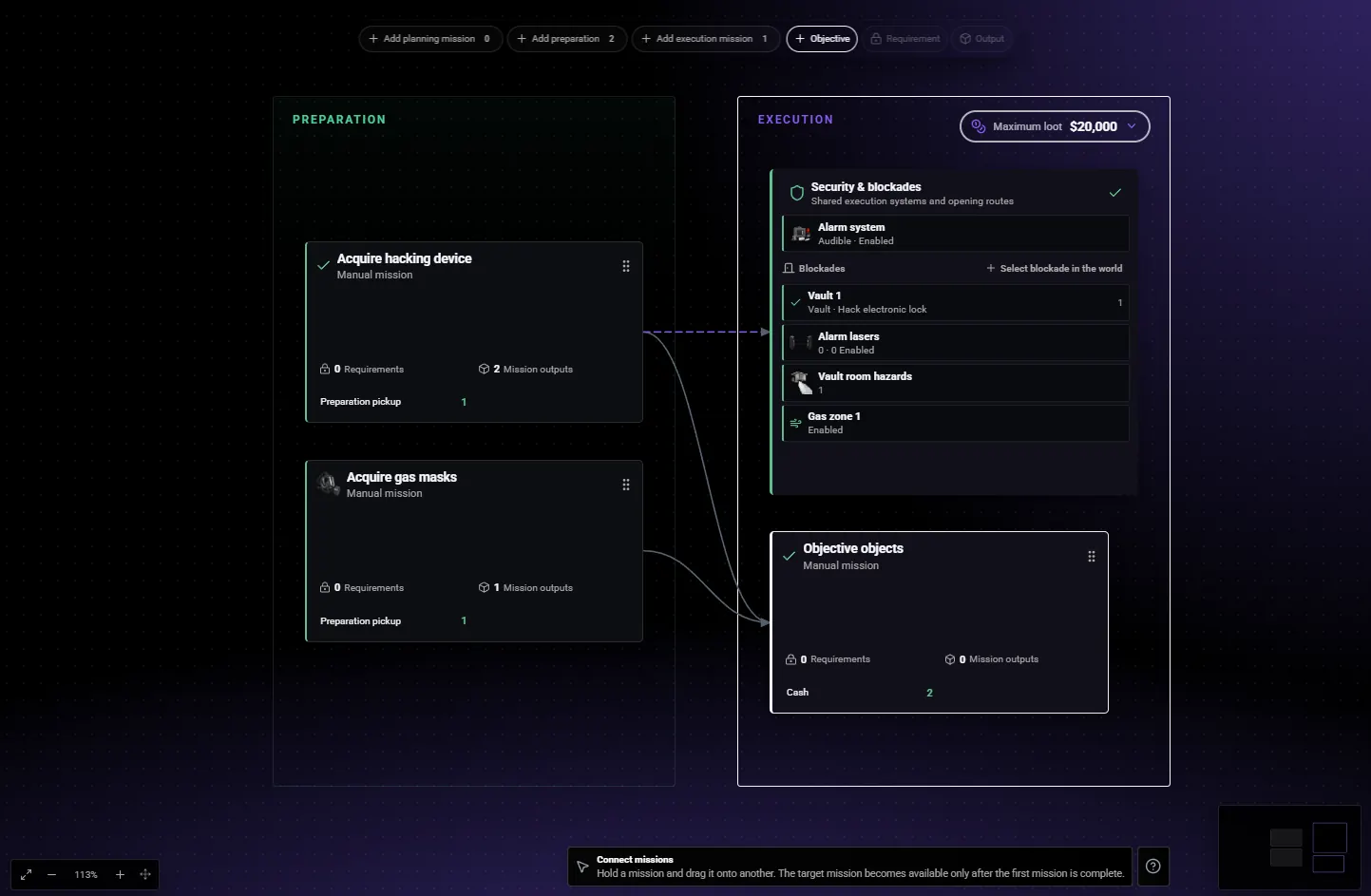
Build the operation from left to right: preparation produces progress or equipment, dependencies unlock execution, and objectives produce the final loot.
Start with a small heist
Open /heistcreator with an authorized administrator. The tool must be enabled in Config.HeistCreator.enabled; its default permission is sky_crimesystem.crimecreator. See Permissions.
You can also open it from /jobconfig → Crime System → Robbery → Heist Creator → Open Heist Creator. Save any Job Configurator changes first; this action closes the configurator and opens the Creator.
For your first heist, choose one building, one locked door or vault, one equipment preparation, and one cash cart. Complete that route as a player before adding more.
Operation Flow shows the missions. Select an entry to edit its settings in the panel on the right. Use World for placing and moving objects. The optional tutorial explains these controls.
The screenshots below come from the in-game Creator. They use the included Fleeca heist to show where the settings are. Select an image to enlarge it.
Create the heist
Create a draft
Select New draft. Give the heist a clear name and description, then set the minimum and maximum crew size.
Keep it disabled while you build it. Players should only see it once it is ready. Use a unique ID so it does not replace another heist.

Use New draft for your own heist. Select Fleeca: The Legion Job when you want to inspect or edit the supplied example. Other cards depend on what you have already created.
Choose what players must do
Split the robbery into a simple order:
- Reconnaissance: discover information or photograph a target, if needed.
- Preparation: collect or craft the equipment.
- Execution: open the target and take the loot.
Add the missions using the toolbar. Give each one an instruction players can follow, such as “Collect the hacking device and store it with the crew's equipment.”
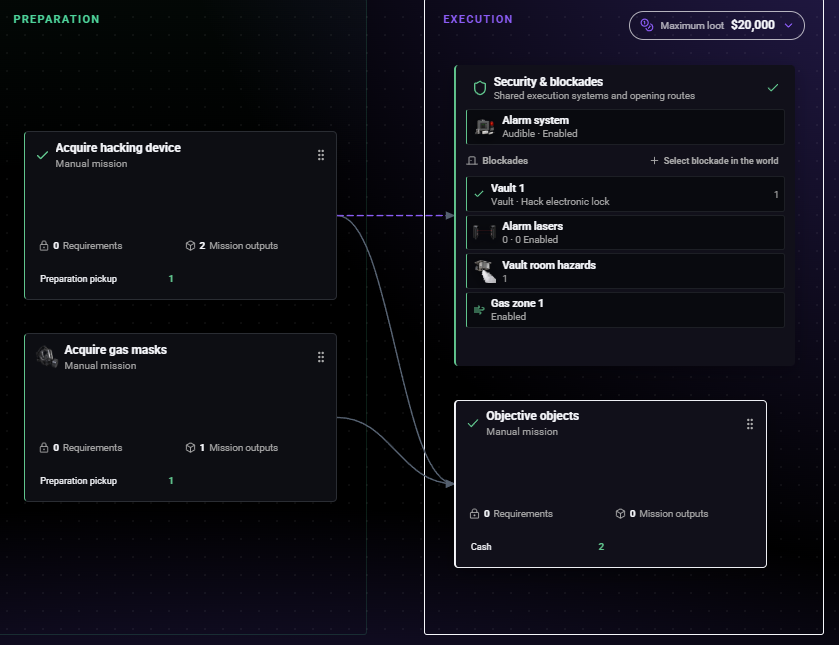
- The hacking preparation is linked to the vault's opening method.
- The mask preparation supplies protection for the gas area.
- Security & blockades contains the vault, alarm and gas settings.
- The execution mission contains the loot. Select a mission or security entry to open its properties.
Set up the door or vault
Select the target door in the world and add an opening method, such as hacking or drilling. Check where players stand to use it and which direction it opens.
The opening method can add a preparation automatically. Open that preparation and finish its settings; it is not ready just because it has appeared in the list.
For the included example, open Operation flow → Security & blockades → Vault 1. Scroll the right-hand panel to Hack electronic lock.
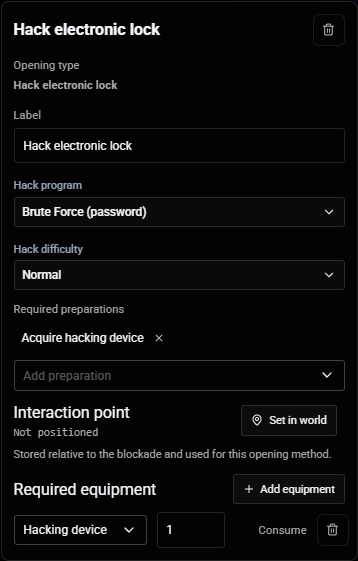
- Required preparations controls which mission must be completed first.
- Required equipment lists the tool and quantity for this opening method. The player performing the hack must also carry the physical
hacking_device.
Provide the equipment
Choose whether players pick up or craft the equipment.
For a pickup, place a reachable collection point and check that the player receives the required physical item. For crafting, choose ingredients, amounts, and the finished item. Drill recipes start empty for you to fill.
Keep the generated completion requirement for the opening method. A preparation can mark equipment as acquired in the plan while a separate item is still needed in the player's inventory. Test both before continuing.
To inspect a physical pickup reward, select Acquire gas masks → Mission outputs in Fleeca and open the existing output in the right-hand panel.
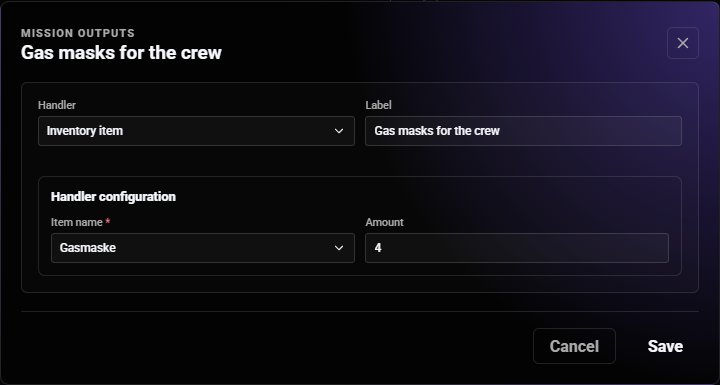
- Choose Inventory item when the pickup should give an item to the player.
- Select the item your inventory uses; this example uses
gas_mask. - Set the quantity to match the equipment your crew needs. The included example gives four masks.
Place the loot
Add a cash cart or another supported loot object to the execution mission. Set its value and place it where the player has room to interact.
If every cart should be collected, make all of them required. Keep the reward small during testing, then adjust it for your economy.
Set the order
Connect tasks that must happen in sequence. For example, the hacking preparation must be completed before the vault's hacking method is available.
Use the dependency controls in the selected mission or opening method. A dependency simply means “finish this other task first.” Do not make the preparation depend on completing the robbery itself.
If police must be online, add a Police on duty requirement to the appropriate phase or mission and set the minimum. Police settings for ATM or shop robberies do not automatically apply to your heist.
Add security if needed
Use Security & blockades to configure the alarm and any gas or lasers. If you add gas, provide masks and test that players can equip them before entering it.
Start with direct loot payment. Add a buyer later if you want a separate sale after collection. See Security and Loot.
Check and activate
Use Validate and correct the reported problems. For your own drafts, leave the heist disabled while saving unfinished work.
When the heist is ready, enable it and select Save draft. A successfully saved, enabled heist becomes available to new player plans.
Create a fresh plan with a normal player and complete every step, including equipment storage and payment.
Set the Planning Map
In the heist definition, set a clear location label and capture the two-dimensional target used by the planning map. This is the destination players see in the tablet and shared organization screen.
Use the robbery's main target—not a distant preparation pickup—and verify the marker against the installed map. For transport or escape scenarios, choose the point that best explains where the crew should begin the execution route.
If no explicit map target exists, Crime System can infer one from a blockade, alarm, gas zone or mission objective. Treat that inference as a fallback and verify it with a new player plan.
Understand pickup outputs
A planning_pickup aggregates Planning asset and Inventory item outputs that use the same item key. The aggregated amount becomes both the physical pickup reward and the equipment amount required by the plan.
The currently supplied Fleeca hacking preparation has one Planning asset and one Inventory item output for hacking_device, each with amount 1. Its effective result is therefore two physical devices and a two-device storage requirement. Do not add a third output when following the supplied example.
When building a custom pickup, use one intentional source for the item amount unless you deliberately want the values added together:
- Open Operation flow and select the pickup preparation.
- Inspect every entry under Mission outputs, including Planning asset and Inventory item outputs.
- Group outputs mentally by their item key and add their amounts; that sum is the effective pickup and equipment quantity.
- Remove or adjust duplicate-key outputs until the effective quantity matches your design.
- Confirm the output dialog, save the whole heist using the correct action below, and create a new plan for testing.
Crafting uses its configured finished item, while the supplied gas-mask pickup grants four masks. Always verify the physical reward and the plan's storage requirement together.
Which save action should you use?
| What you are editing | What to do |
|---|---|
| Your own heist created with New draft | Enable it and use Save draft to make it playable |
| An included JSON heist, such as Fleeca | Use Save JSON, then restart the resource before testing a new plan |
| Your own unfinished draft | Leave it disabled and use Save draft to save your progress |
You do not need Publish to make a heist playable on your server. The online Heist Hub is currently unavailable; enable and save the heist locally instead.
Existing player plans keep their original settings. Always create a new plan when checking your edits.
Optional: export a heist file
You only need Dev export if you want a JSON copy to move or package yourself. Normal Creator saving is enough for your server.
Exports are written to config/heist_exports/. To load an export as an included heist, move it to config/heists/, add its relative file path to Config.HeistDefinitionFiles, and restart the resource. Simply placing a file in the folder does not enable it.
Back up customized JSON files before installing a resource update.
Before letting players use it
Check that a normal crew can obtain every tool, reach every interaction, complete the robbery, and receive the expected payment. If another administrator has edited the same heist, review any save-conflict message before replacing their changes.