
Browse docs
Emergency Dispatch
Dispatch Enhanced v2
Emergency Dispatch is the server-authoritative operations system built into the Jobs Base tablet. It gives responders a focused field-unit view and authorized dispatchers a separate control-center workspace for calls, incidents, resources, radio traffic, warnings, and coordination.
| Workspace | Designed for | Main tasks |
|---|---|---|
| Field-unit Dispatch | On-duty responders | Staff a unit, join radio, accept assignments, update FMS, and set waypoints |
| Dispatch center | Authorized dispatchers | Take calls, create incidents, alarm units, coordinate radio, and close incidents |
Config.Dispatch system. The optional
Config.EmergencyDispatch integration connects the separate
emergencydispatch resource and is not required for Dispatch Enhanced v2.Field-unit workspace
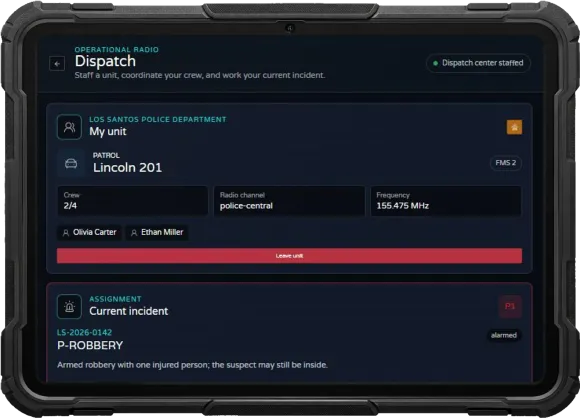
Every on-duty member of a Dispatch-enabled job uses the normal Dispatch page. The page keeps the crew's most important information in one vertical flow:
- current unit, crew capacity, FMS status, channel, and frequency;
- active assignment, priority, location, waypoint, and incident state;
- available units and their staffing state;
- unit-wide channel selection and personal radio settings;
- self-dispatch controls when the configured center is not staffed.
The Open Dispatcher action is shown only when the player is on duty in a configured
dispatcherJobs job, has the DISPATCH permission, and matches the center's
optional grade restrictions.
Dispatcher workspace
Authorized staff start a shift for one control center and choose their available roles. The main workspace places the call queue, open incidents, and selected incident in one operational view. Quick actions, collapsible panels, resizable columns, direct priority changes, and a short undo window reduce navigation during busy situations.
Start a dispatcher shift
- Go on duty in a configured
dispatcherJobsjob with DISPATCH permission (21). The center'sallowedGradesand role restrictions must also allow access. - Open the normal Dispatch app and select Open Dispatcher at the bottom.
- Select a control center and enter your callsign, for example
PD-CONTROL. - Select the permitted roles: Call taker (
call_taker), Dispatcher (dispatcher) and, when assigned, Situation control (situation). - Select Start shift to enter the operational dispatcher view. Review the caller queue and incidents, then use Resources, Communication and the tactical map as permitted.
Call taker and Dispatcher are selected by default; Situation control is not automatically active. Select it explicitly for a shift that needs those capabilities. The role does not bypass the server's capability checks or Config.Dispatch.bossPermissions requirements.
Your center configuration and employee permissions determine which roles and tools are available. If Open Dispatcher is absent, check duty, the current registered job, permission 21, the center's allowed grades and enabled Dispatch settings.
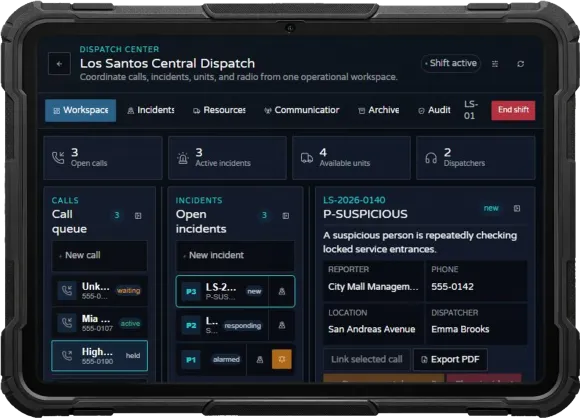
Capabilities are checked again by the server. Showing a button in the frontend never grants the permission to use its action.
Tactical map
The Incidents view combines live units, active incidents, stations, facilities, and configured POIs. Dispatchers can filter layers and priorities, inspect grouped markers, follow movement, and trigger permitted incident actions directly from the map.
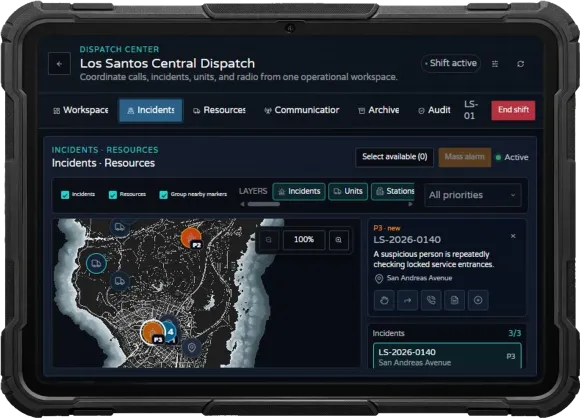
Clustering, live routes, radio-traffic highlighting, auto-centering, context actions, and movement
trails are controlled through Config.Dispatch.enhanced.map. Tactical drawing tools are
optional and disabled by default. The timeline key is currently reserved; the map does
not provide historical replay or a time slider.
Resources
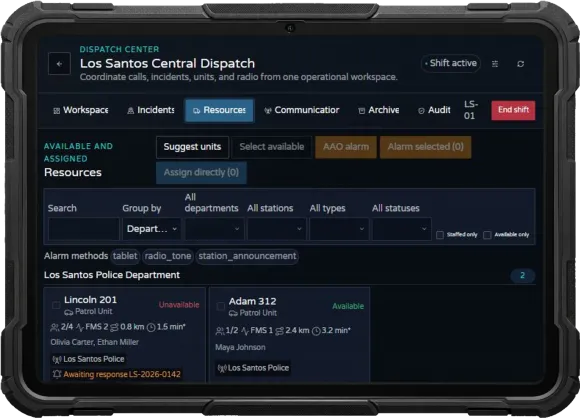
The Resources view shows staffed and available units across covered departments. Filter by department, station, unit type, or FMS state, then use response-plan suggestions or select units manually. Crew size, distance, ETA, radio channel, and current assignment remain visible while dispatching.
Choose an already saved incident directly in this view, take it if it is unassigned, and add units through Assign directly, Alarm selected, or AAO alarm. Vehicle selection and an entered override reason stay in place during live updates to the same incident. Changing incidents clears them. See vehicle suggestions and response plans for the optional distance ordering and reinforcement behavior.
Communication
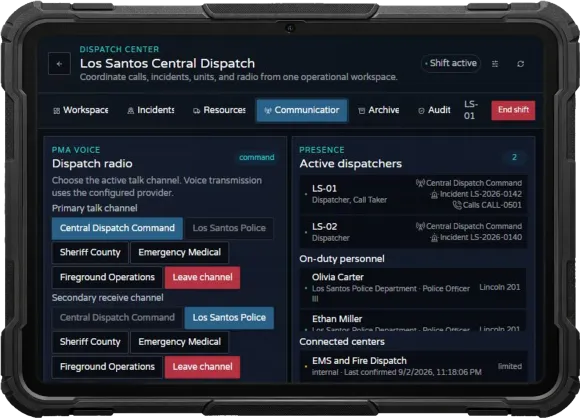
The Communication view brings the active voice channel, secondary receive channel, dispatcher presence, on-duty personnel, connected centers, written center chat, SDS messages, and public warnings into one place. The effective radio behavior still comes from the configured PMA Voice, SaltyChat, or YACA adapter.
Archive and personal settings
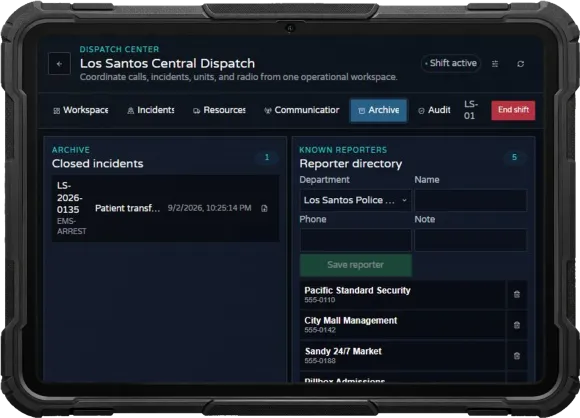
Closed incidents remain in the Archive and can be exported when the current user is authorized. The same area includes the known-reporter directory used during call intake.
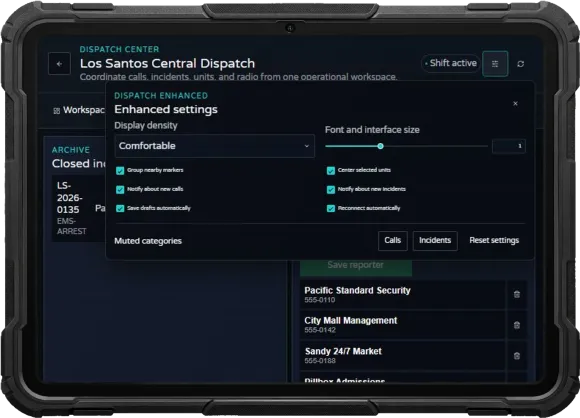
Each dispatcher can choose display density, interface scale, map behavior, notification categories, draft recovery, and automatic reconnect. Personal settings never expand server-side permissions.
Quick setup
1. Start the required resources
Start the database, phone, and voice providers before the Sky resources:
ensure oxmysql
ensure <your_phone_resource>
ensure <your_voice_resource>
ensure sky_base
ensure sky_jobs_base
ensure sky_policejob
ensure sky_ambulancejob
ensure sky_firejob
The phone resource is optional when citizens do not need to submit calls through a phone app. Use the real resource folder names in place of the placeholders.
2. Enable Dispatch Enhanced
With Config.UseIngameConfigurator = true, open /jobconfig →
Jobs Base Configurator → Dispatch & Tracking → Dispatch and enable Dispatch and
Enhanced. Saved settings apply live and remain in effect after a resource restart.
With the ingame configurator disabled, edit the existing table in
sky_jobs_base/config/config.lua and restart sky_jobs_base:
Config.Dispatch = {
    enabled = true,

    enhanced = {
        enabled = true
    }
}
This is only the minimum excerpt. Keep the supplied radio, map, permission, center, warning, SDS, phone, resilience, and rate-limit settings in the existing table.
When the ingame configurator is enabled, editing config.lua alone does not replace its
saved configuration. To deliberately import the local managed Jobs Base settings, use
/jobconfigimport sky_jobs_base. This imports all registered Jobs Base settings, not only
Dispatch. The Default data action restores the shipped defaults, including disabled postal
lookup and disabled incident-selection, takeover, and suggestion automation. Restart Jobs Base
after changing Config.UseIngameConfigurator itself.
3. Configure at least one center
A center defines who may dispatch, which jobs it covers, and which channels and roles it offers:
Edit Centers in the same global Dispatch section, or use the following structure in the existing configuration when the ingame configurator is disabled:
centers = {
    {
        id = "central_dispatch",
        enabled = true,
        dispatcherJobs = { "police", "sheriff", "ambulance", "fire" },
        coveredJobs = { "police", "sheriff", "ambulance", "fire" },
        channels = {
            { id = "POLICE_MAIN", shortLabel = "POL" },
            { id = "EMS_MAIN", shortLabel = "EMS" },
            { id = "FIRE_MAIN", shortLabel = "FIR" },
            { id = "DISPATCH_MAIN", shortLabel = "CMD" }
        },
        defaultChannel = "DISPATCH_MAIN",
        noDispatcherFallback = true,
        roles = {
            { id = "call_taker", default = true },
            { id = "dispatcher", default = true },
            { id = "situation" }
        },
        alarmMethods = { "tablet", "radio_tone", "station_announcement" }
    }
}
Use unique IDs. The defaultChannel must exist in the center's channel list. Add
hybrid, stations, and connectedCenters settings from the
supplied configuration when those workflows are required.
4. Complete each job in /jobconfig
Open /jobconfig, choose the job, and configure these Dispatch sections:
- Enable Dispatch and, if required, Show in Emergency App.
- Create at least one radio channel and select the job's default channel.
- Create FMS status codes and mark at least one status as available for dispatch.
- Create response unit types and enough virtual fleet entries for the expected crews.
- Add incident keywords and response plans using matching
TYPE:COUNTrequirements. - Add useful POIs and known reporters.
- Grant Dispatch center only to grades that should work as dispatchers.
- Save the job. Saved global Jobs Base settings also apply live; restart when using the local
config.luawith the ingame configurator disabled.
Jobs in the crime group are intentionally excluded from the public Emergency phone app.
5. Select the voice provider
Choose automatic detection or a specific adapter in sky_base/config/config.lua:
Config = {
    phone = "auto",
    voice = "auto"
}
Supported voice values are "pma", "saltychat",
"yaca", and "none". With SaltyChat, enable
RequestRadioTrafficStates so transmitting and receiving states are reported reliably.
Postal lookup from JSON files
Postal lookup is optional and disabled by default. Enable Dispatch and Enhanced first, then
open /jobconfig → Jobs Base Configurator → Dispatch & Tracking → Dispatch →
Postal lookup. Enable the search, keep JSON source resource set to
sky_jobs_base, select a JSON file path, and save.
The resource includes these complete datasets under sky_jobs_base/config/postal/:
| File | Postal map | Rows / distinct codes |
|---|---|---|
oulsen_satmap_postals.json | Oulsen | 947 / 946 |
new-postals.json | New and Improved Postals | 1,687 / 1,687 |
old-postals.json | Original Postals | 459 / 454 |
ocrp-postals.json | OCRP | 865 / 865 |
Choose the dataset matching your server's postal map. These maps use different numbering systems;
only one JSON source is selected at a time. Map textures and the Nearest Postal script are not
required for the lookup. The resource reads local data; it does not download postal data at runtime.
Source revisions and MIT notices are included in config/postal/README.md,
LICENSE.Oulsen.txt, and LICENSE.NearestPostal.txt.
Add your own postal file
- Create a JSON file containing a list of postal codes and GTA world coordinates.
- Place it directly in
sky_jobs_base/config/postal/, for examplemy-server-postals.json. - Reopen the Jobs Base Dispatch settings. The JSON file path dropdown discovers the
.jsonfiles in that folder automatically. - Select your file, enable postal lookup, and save.
[
  { "code": "1000", "x": 1644.1221923828, "y": 6456.0561523438 },
  { "code": "1001", "x": 1538.3503417969, "y": 6344.6381835938, "z": 0, "label": "Paleto Bay" }
]
z and label are optional; omitted z uses 0.
Keep codes as strings to preserve leading zeros. postalCode can replace
code, and coordinates can also be nested in a coords object with
x, y, and optional z.
Coordinates must be finite and between -8500 and 8500. Files support up
to 8 MiB and 20,000 rows. Manual postal entries in the configurator can override individual
codes from the selected file; use JSON for larger datasets because manual lists are limited to
2,048 entries. If a file repeats a code, its last entry wins and the server logs a warning.
For a file kept in another resource, set JSON source resource to that resource's folder name,
save, and reopen the settings. The dropdown then lists that resource's config/postal/
folder. Existing relative JSON paths outside that folder remain supported, but are not discovered
by the dropdown. Absolute paths and parent-directory paths are rejected.
After editing the contents of a selected JSON file, restart sky_jobs_base to reload its
coordinates. Reopening the configurator discovers new filenames; it does not reload an already
cached dataset.
When using the local configuration instead of the ingame configurator, edit this part of the
existing Config.Dispatch table:
postalSearch = {
    enabled = true,
    resource = "sky_jobs_base",
    file = "config/postal/oulsen_satmap_postals.json",
    entries = {}
}
Create or move an incident by postal code
In New incident or the incident edit form, enter a postal code and select its search result. Saving uses that result's coordinates for the incident marker and the assigned unit's waypoint. The dispatcher can stay inside the control center throughout this workflow.
A typed address alone does not supply coordinates. Select a postal result, a configured POI, a point on the control-center map, an existing waypoint, or the explicit current-position action. Moving the incident on the map removes its previous postal-code association. An unreadable or invalid JSON file produces a visible search error and a server log entry.
Vehicle suggestions and response plans
Global workflow options are under Jobs Base Configurator → Dispatch & Tracking → Dispatch → Enhanced → Operations. They require Dispatch Enhanced to be enabled. Each customer can choose which automation to enable; the new automatic actions are off by default.
All paths below are relative to Config.Dispatch:
| Setting | Default | Behavior |
|---|---|---|
postalSearch.enabled | false | Show postal lookup in the new and edit incident forms. |
enhanced.operations.selectCreatedIncident | false | Select the incident immediately after saving it. |
enhanced.operations.takeCreatedIncident | false | Select the saved incident and attempt to take it using normal ownership and permission rules. |
enhanced.operations.suggestUnitsOnSelect | false | Load unit suggestions when an incident is selected. |
enhanced.operations.recommendationStrategy | "crew" | "crew": larger crews first, then distance. "distance": nearest eligible units first. |
enhanced.operations.responsePlanMode | "full" | "full": recommend the full response plan each time. "remaining": recommend only unmet demand. |
enhanced.map.nearestAvailableOnly | true | Limit the map's nearest-unit search to available units. false includes occupied units in that search. |
Map: find only available vehicles belongs to Enhanced → Map; postal source options belong to Postal lookup. Including an occupied unit in a map search does not make it eligible for an assignment. Distances are straight-line estimates displayed in kilometers, not calculated road routes. Suggestions respect staffing, FMS availability, response types, job coverage, and the dispatcher's permissions. A suggestion alone does not assign or alarm a unit.
Configure an AAO
Response plans (AAO) belong to each job's Dispatch configuration, rather than the global Jobs Base
workflow options. In /jobconfig, choose the relevant job resource and job, open
Dispatch, and configure:
- Unit types and fleet entries with matching type codes.
- A keyword with its required vehicle types and counts, for example
RESPONSE:2,SUPPORT:1. - The minimum total crew and the participating departments for that plan.
- The keyword on the incident so Suggest units and AAO alarm use that plan.
With responsePlanMode = "remaining", staffed units already assigned or still offered
to the same incident count toward its required types and minimum crew. Released units, unstaffed
units, units assigned elsewhere, and units outside the permitted jobs do not cover that demand.
For a plan requiring two RESPONSE units, one staffed unit already committed leaves
one to recommend. Additional matching units can still be needed to meet the minimum crew. Once
the plan is fully covered, another AAO alarm does not create additional offers.
Add vehicles after saving
- Open Resources and choose the saved incident in Active incident.
- Use Take incident if it has no dispatcher. You must own the incident and have the required permissions to assign or alarm units; taking a new incident never displaces another incident you are already handling.
- Use Suggest units or select available vehicles manually. Set
recommendationStrategy = "distance"to prefer the nearest eligible vehicles. - Choose Assign directly for a direct assignment, Alarm selected for an alarm offer, or AAO alarm for the configured response plan. Enter an override reason when manually alarming a selection that differs from the response-plan recommendation.
The optional select-after-save, take-after-save, and suggest-on-selection settings shorten these steps while retaining the same access and ownership checks.
Quick operating guide
Field unit
- Go on duty and open Dispatch in the Jobs Base tablet.
- Staff a free virtual unit and verify the crew list.
- Select an available FMS status and join the required radio channel.
- Accept the assigned incident, set its waypoint, and update FMS while responding.
- Leave the unit when the crew ends its shift.
Dispatcher
- Open Dispatch, choose Open Dispatcher, select a center and roles, then start the shift.
- Accept an incoming call or create an incident directly.
- Classify the incident, select a postal result or another explicit location, save it, and link the call when applicable.
- Open Resources, select the saved incident, take it if unassigned, then use Suggest units or select matching units manually.
- Assign or alarm the units and coordinate radio, SDS, warnings, and connected centers as needed.
- Add situation updates, verify the incident log, and close the incident when operations finish.
- Open Archive to review the record or use Export PDF.
PDF export
Use Export PDF on an active incident or an archive entry. There is no printer overlay and no server report folder. Jobs Base creates a real PDF in memory, requests a short-lived authorized URL, and asks FiveM to open that URL in the operating system's default browser. The browser's PDF viewer can then display or download the file.
FiveM may show its normal external-URL confirmation first. The generated link expires after two
minutes, and a new export by the same player replaces the previous one. If a fresh link returns
404 or never opens, verify that the server's published TCP endpoint is reachable from
the player's computer.
Test checklist
Use a caller, a dispatcher, and a field unit when possible:
- The responder can staff a unit, set an available FMS state, and join radio.
- The dispatcher can start the correct center shift with the intended roles.
- A phone call reaches the call queue and can be linked to an incident.
- The incident appears on the tactical map with the expected priority and location.
- If enabled, selecting a postal result saves the correct location without leaving the center.
- A custom JSON file appears in the source dropdown after reopening the configurator.
- A saved incident can be selected, taken, and assigned additional vehicles in Resources.
- Distance ordering selects the nearest eligible unit; remaining-demand AAO counts existing staffed assignments and offers before suggesting reinforcements.
- Suggested or selected resources receive the alarm and can accept it.
- Waypoint, radio, SDS, situation log, and FMS updates reach the intended users.
- Closing the incident moves it to the archive.
- Export PDF opens a real PDF in the external browser after confirmation.
- Ending the dispatcher shift activates the configured hybrid fallback.
Create an incident from another resource
Trusted server resources should use the resource-owned API. Its sourceId is idempotent within the
invoking resource, so reconnects or provider retries do not create duplicate incidents:
local result = exports["sky_jobs_base"]:CreateDispatchIncident({
    sourceId = "vehicle-theft:report-2841",
    jobs = { "police" },
    coords = { x = 215.4, y = -810.2, z = 30.7 },
    message = "A witness reported a vehicle theft in progress.",
    keywordCode = "VEHICLE_THEFT"
})

if not result.success then
    print(("Unable to create dispatch incident: %s"):format(result.error))
end
The job must be covered by a configured dispatch center. keywordCode must exactly match a
configured response plan when automatic plan selection is expected. The simpler client export is
restricted to the caller's own on-duty job, uses the server-side player position, and accepts only a
category from client metadata.
Troubleshooting
Confirm that the player is on duty, the job is listed in the center's
dispatcherJobs, the grade has the Dispatch center permission, and at least one
center role allows that grade. Field-unit access alone is not dispatcher access.
Confirm that the unit is staffed, has an available FMS status, has no conflicting assignment, and uses a response type matching the selected plan. Use the same type codes in the fleet and the plan. In remaining-demand mode, an already covered plan intentionally suggests no further units. Select Nearest distance in the global workflow options when the closest eligible vehicles should take priority over larger crews.
Enable Dispatch, Enhanced, and Postal lookup in the Jobs Base configuration. Confirm that the
selected resource contains the selected relative JSON file and that its rows have codes and
valid coordinates. Check the server log for the reported file or format error. With the ingame
configurator enabled, import local settings deliberately or save them through the configurator;
editing config.lua alone does not replace saved settings.
Place the .json file directly in the selected resource's config/postal/
folder. Save a changed source resource, then reopen the Dispatch settings to refresh the list.
Restart sky_jobs_base after editing the contents of a selected file. If postal
locations are wrong, select the dataset matching your installed postal map.
Select the incident in Resources and take it if it is unassigned. Confirm ownership, role permissions, staffing, FMS availability, and current vehicle assignments. An incident owned by another dispatcher must be handed over through the normal workflow. Automatic takeover never replaces another incident you already own.
Staffing a unit and joining radio are separate actions. Select a channel on the field-unit page,
then verify Config.voice, the provider resource name, and resource start order.
Accept FiveM's external-link confirmation and retry the export to create a fresh two-minute URL. If it still fails, verify the public TCP endpoint and remember that PDF export is not yet fully reliable in every environment.